






Whether you use LinkedIn automation tools or handle everything manually, it is likely worth considering upgrading to a Sales Navigator account. While this won’t be necessary for every business, it can be very helpful for many companies, especially if you mostly use LinkedIn for your outreach. Organizations using Sales Navigator report 312% ROI over 3 years, with the platform paying for itself in less than 6 months.
If you are still deciding whether to invest in Sales Navigator, learning more about it can help you decide. Or, if you already have Sales Navigator as part of your LinkedIn account, you will want to ensure you take full advantage of its features. In either case, the following guide will teach you (or refresh your memory on) everything you need to know about using Sales Navigator.
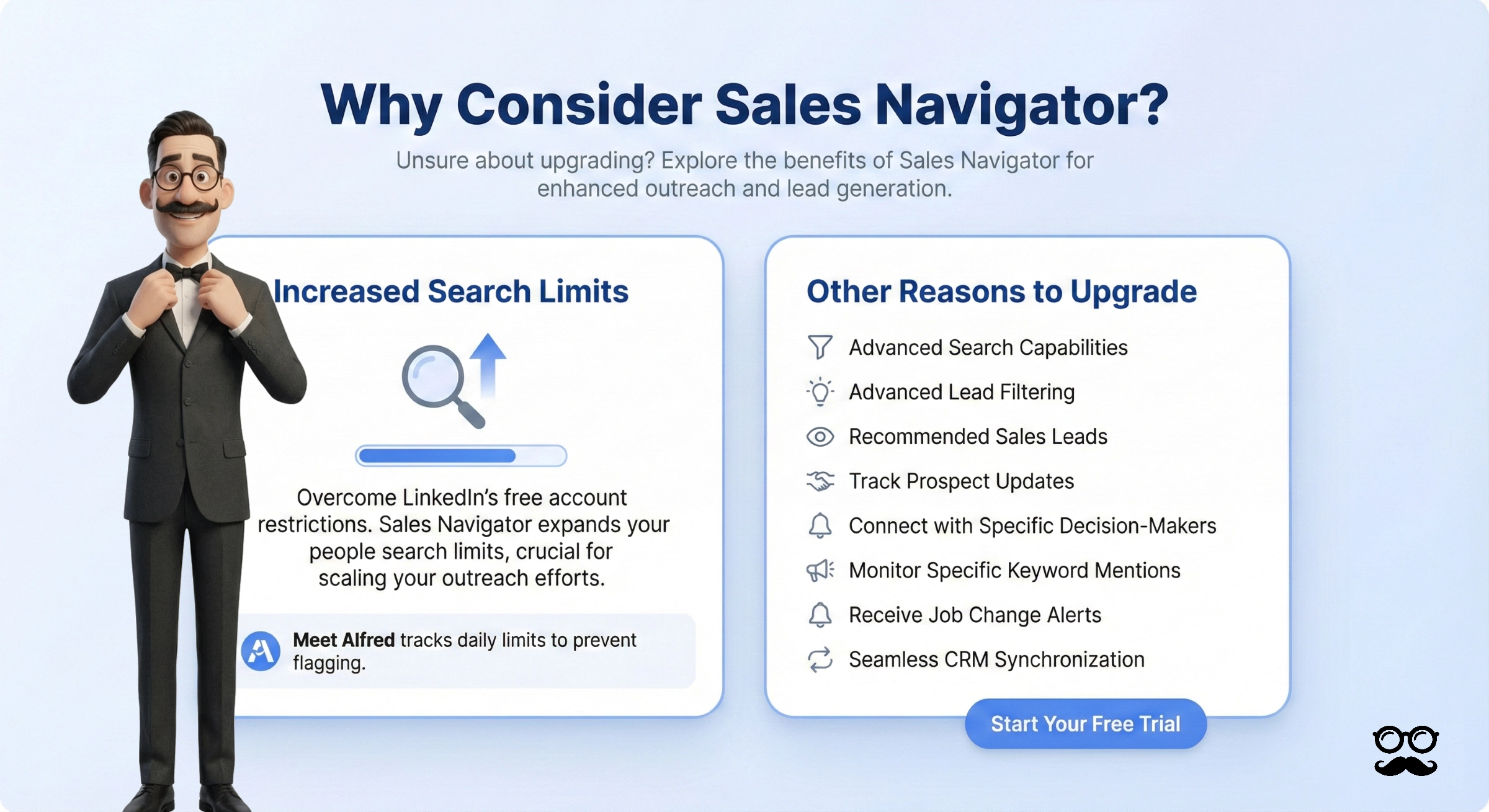
One of the most common questions is whether you even need to get Sales Navigator or if your regular LinkedIn account manager and account are enough. This is up to you to decide. If you are unsure, you can always try Sales Navigator and the Sales Navigator Chrome Extension for a month or two to see how much of a difference it makes and decide.
But there are a few reasons that people who get Sales Navigator do so.
There are LinkedIn limits for various actions, from sending messages to conducting searches. Sales Navigator increases these limits, making it crucial to anyone who wants to use LinkedIn for larger-scale outreach.
According to LinkedIn, the platform determines your monthly limit for people searches based on your overall activity. That activity helps the platform decide if you are using it to generate leads or recruit. They will decide that you are using it for these purposes if you search profiles with filters or keywords or click on profiles in the “People Also Viewed” area. This helps LinkedIn push people to upgrade to Sales Navigator.
Unfortunately, LinkedIn doesn’t explicitly tell you your limit. All it does is show you a warning if you are approaching a limit for your free people search.
If you reach that limit regularly, you likely want to go with Sales Navigator.
Meet Alfred tracks all your LinkedIn daily limits to prevent your account from being flagged. Meet Alfred’s algorithms automatically detect your membership level and use this to set the limit. It starts with a conservative setting to ensure your account isn’t flagged. It also allows you to edit the limit, making it less conservative. This applies to all of the limits, including daily profile views, the LinkedIn limit on connections, LinkedIn messaging limits, and email limits.
The following are some of the other reasons that people decide to upgrade to Sales Navigator. We’ll be covering several of them in more detail when we get into how to use Sales Navigator effectively.
Once you decide to go ahead and use Sales Navigator to make the most of your LinkedIn campaigns, it’s time to set it up. Ideally, you will already have an idea of how to use the platform for automated LinkedIn lead generation and how to do so manually. As part of this, you should already know your target audience and where they are on LinkedIn.
Start by setting your sales preference on LinkedIn. These are the criteria you choose based on things like:
This way, LinkedIn can give you the most relevant lead recommendations.
Adjusting your sales preferences is very straightforward.
With these basics out of the way, it’s time to explore tips to make the most of various features that will help you with LinkedIn lead automation and manual lead generation.
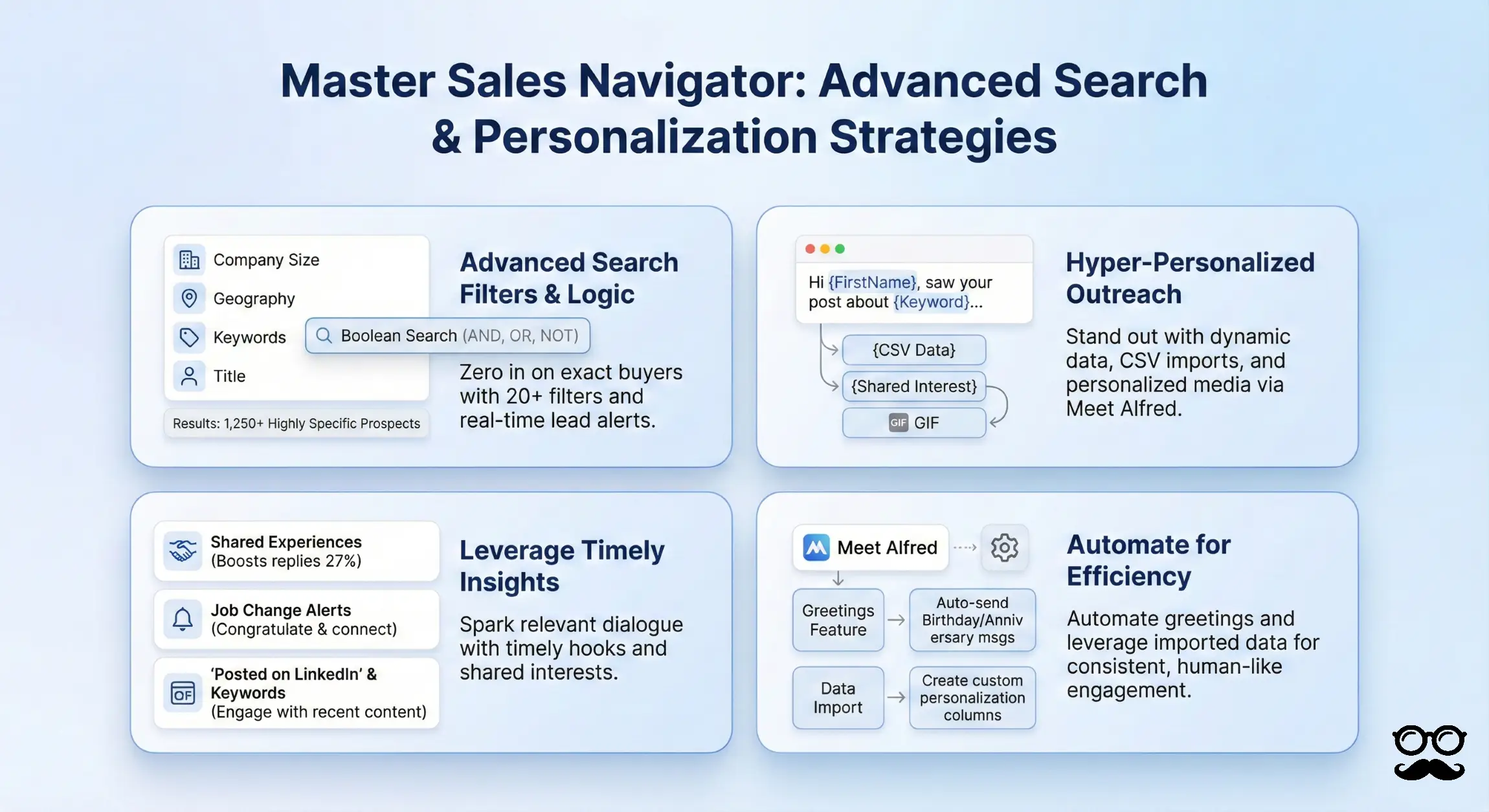
Advanced search is easily one of the most popular features on Sales Navigator. This feature lets you take your prospecting to the next level, whether you automate LinkedIn or use it manually.
With advanced search, you can take advantage of more than 20 advanced search filters. These include the ability to perform Boolean searches fortap into dozens of highly specific filters to zero in on your exact buyer. Even better, you can save those filter combinations so Sales Navigator automatically sends you real-time lead alerts whenever fresh prospects match your criteria. Layer Boolean logic into the company, title, and keyword fields, and you’ll surface the perfect list in seconds.
For reference, you will likely regularly use the following filters from advanced search if your goal is lead generation:
Overall, advanced search includes the following people search filters, among others:
And some of the company search filters include:
Once you find a company or prospect to reach out to, remember to personalize your message. With the ability to automate LinkedIn messages, people receive messages regularly. The best way to stand out from the crowd is with personalization.
Meet Alfred lets you easily incorporate personalization as you automate LinkedIn messages. Start with basics, such as the prospect’s name, job title, or company. Or include a common interest. Meet Alfred also offers hyper-personalization by importing a .csv file. Every additional column in the file will be captured by Meet Alfred. These columns and the data in them become more ways to send personalized LinkedIn messages. You can even add personalized gifs or images, thanks to Meet Alfred’s integration with Hyperise.
Given the importance of connections and personalization, you should make full use of the “Leads with shared experiences” filter in Sales Navigator. This will highlight prospects who have the same interests on their profile as you. Referencing shared experiences increases response rates by 27%, giving you a significant advantage in outreach.
You’ll notice that one of the filters mentioned only shows people who have recently changed jobs. This is a great opportunity to start a conversation and include some personalization in your message. Beyond job changes, Sales Navigator also notifies you when a saved lead engages with your content or when an account you follow posts a significant update—giving you multiple timely hooks to spark a relevant dialogue.
Offer congratulations on the new position or “exciting step forward in their career.”
Don’t want to worry about tracking job changes yourself? Meet Alfred’s Greetings feature takes care of it for you. This feature will automatically send customized messages to your connections on their birthdays, when they change jobs, when they have a job anniversary, or when they endorse you. This way, you never miss out on an opportunity to maintain your connection or send congratulations or a thank you.
Another one of the advanced filters that you will want to take full advantage of is “posted on LinkedIn.” As a refresher, this will show people who have recently made posts on LinkedIn.
At the most basic level, you can use this to find the recent content posted. Then, you go interact with them on the LinkedIn post. Make a comment that continues the discussion to build interactions and give you a common point to mention in your personalized LinkedIn connection request.
Even better, you want to use Posted Content Keywords feature. This lets you search for people who recently posted about a specific keyword. This allows for an even higher level of personalization. For example, maybe your target audience is owners in functional business development. You could search for content with the keyword “growth.”
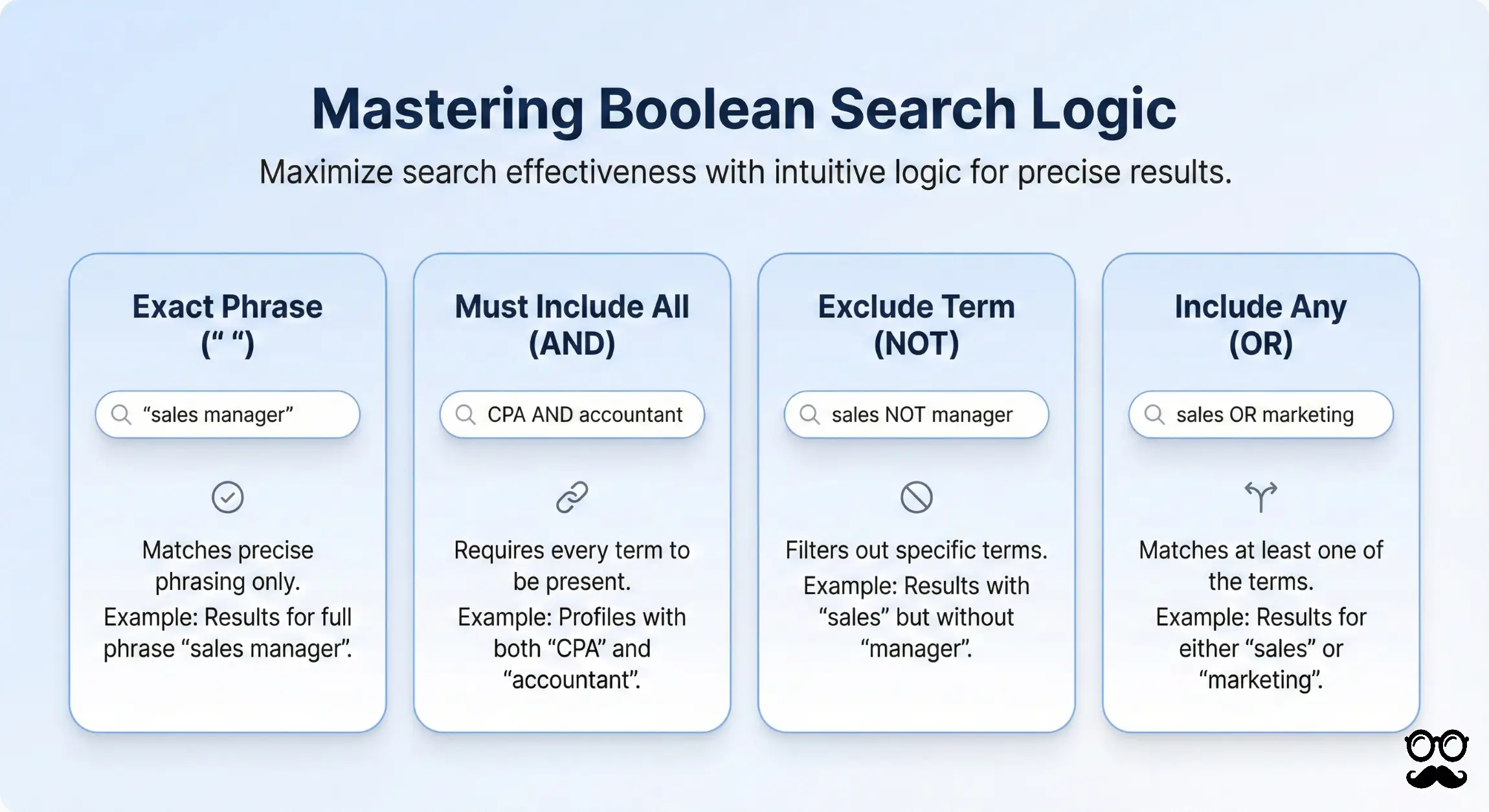
We touched on the fact that certain types of advanced searches on Sales Navigator let you use the familiar Boolean search logic. This is an intuitive way to maximize the effectiveness of your search using logic that you likely already use on Google or other programs.
As a refresher, there are four main features of Boolean searches.
If you put something in quotes, the results will only show things that exactly match the phrasing. For example, writing “sales manager” will only show people with the full two-word phrase. Without the quotes, it could show results for either “sales” or “manager” as well.
With the AND search, every single item in your list must be included. So, you can search for “CPA AND accountant AND finance” if you only want to see profiles with all three terms.
Use NOT to exclude a term. So, if you said, “sales NOT manager,” you would get results that have “sales” but not the word “manager.”
Use OR to search for one of several terms. To be included in the results, only one of those terms has to appear. This is especially useful for titles or words that are frequently used interchangeably. For example, you may write “sales OR advertising OR marketing.”
One of the many reasons people choose to automate LinkedIn outreach is that it can be very repetitive. You will find yourself completing the same searches over and over again at different times and sending similar messages with minor changes for personalization. While a LinkedIn automation tool can help with this, so can a useful feature of Sales Navigator—the ability to save searches.
We mentioned that one of the ways LinkedIn evaluates how many profile views to let your account have is how often you use “view similar.” That’s because this is an incredibly useful tool for lead generation management on LinkedIn. When used properly, this feature instantly gives you an entirely new set of prospective leads.
To start, just head to the search bar while logged into your account. Use it to search for your target market. Click on any of the leads that appear. Then, select “View similar.”
Best of all, you don’t have to come up with new LinkedIn message templates to target these new prospects. Because they are similar to the other leads you’ve reached out to, the same templates will work. While you are welcome to create your own LinkedIn message template, there is no need to do so. Meet Alfred has hundreds of LinkedIn email templates and other templates for you to choose from, each of which allows for hyper-personalization.
You may not realize it, but Sales Navigator has a built-in mechanism for saving the prospects you find in your searches. Start by choosing the button labeled “LeadBuilder” located right next to the search bar. From there, use all the search tips mentioned above. Save prospects and you will see them in your newsfeed in the future. This makes it easier to track updates.
What makes this an exciting feature is that it means you can do this before you automate LinkedIn connections. You can get leads to show up in your newsfeed without connecting with them.
When you use the best LinkedIn automation software, you can easily find yourself with a large number of leads. This makes it nearly impossible to keep track of all of them without some sort of organizational system. While you likely already use a customer management system outside of LinkedIn, your Sales Navigator account also has some useful tools.
Specifically, you can add tags to leads in your feed and leave notes. Use these features to track anything you need to in order to stay organized. For example, maybe you can note their unique priorities or pain points. Or maybe note where they are in the buying process. You could even use notes and tags to track personal information to be used for personalization in messaging.
You are likely already familiar with LinkedIn InMail, at least to some extent. If not, InMail is similar to direct messages or emails—yet it gives you the unique ability to start conversations with professionals who aren’t already in your network, with InMails achieving 10-25% response rates compared to traditional cold emails. Sales Navigator allocates a fresh batch of InMail credits each month, so you can consistently reach high-value prospects at scale while keeping every message personalized.
The most important thing to remember when using InMail is to include personalization. We already mentioned this when talking about how to use your search results, but it is worth repeating. Keep messages concise—InMails between 200-400 characters are 16% more likely to receive responses.
Once you have a Sales Navigator account, put your higher LinkedIn InMail limits to good use by making the most of groups. Groups give you an excellent conversation starter and an excuse to connect with people. Just look for a group that your prospects are likely to be in and then get started.
With a regular LinkedIn account, you can use keywords to search for groups. But Sales Navigator accounts get advanced filters for groups. This isn’t a LinkedIn group management feature, so you don’t have to be an admin for a group to use it. You can use it to find groups to join so you can reach out to members.
Meet Alfred makes it easy to generate leads from groups, as well as events and posts. Meet Alfred can send automated LinkedIn connection requests or messages to the members of the group who fit your requirements. This saves you the hassle of having to do so manually.

Just because you upgraded to Sales Navigator doesn’t mean you can ignore the best practices you’ve already been following with your connection requests and other aspects of LinkedIn marketing.
Before you start reaching out to prospects manually or with LinkedIn outreach automation, be sure to set up your profile. Remember that prospects will likely look at your profile before they accept or respond to your connection request. Follow all the best practices to make your profile professional, informative, and interesting. The most basic things to include are:
Let your profile show that you are an expert in your industry. One of the best ways to do this is by writing and sharing LinkedIn articles and blog posts.
Even with a Sales Navigator account, you can’t just jump in and send 100 messages or connection requests a day. LinkedIn is likely to flag your account. Start with just a few connections a day and increase it slowly. This will avoid flags due to approaching or going over the LinkedIn message limit.
Remember that Meet Alfred automatically tracks your limits for you, making this easy to do.
We’ve occasionally mentioned using LinkedIn automation software in the above discussion but made it clear that you can also take advantage of all the above tips manually. But using an automation tool will let you make the most of the searches.
With automation, you can take all the above tips to the next level. For example, you can automate follow-ups after that initial message. Or you can set up a step-by-step outreach campaign that makes use of multichannel marketing.
Meet Alfred lets you create a single campaign across multiple marketing channels. Include as many steps as you want in the campaign and jump between platforms as much as you want to. Start with automated LinkedIn messaging, then move to email, and then Twitter DMs. Then, go back to the others in any order you want. This will increase your points of contact with the prospect and ensure you reach out to them on their preferred platform.
Upgrading to Sales Navigator will let you maximize your outreach efforts on LinkedIn. This is especially true if you use a LinkedIn message automation tool, as you are more likely to reach the daily limits on free accounts. Sales Navigator not only increases the LinkedIn limit on connections but also gives you plenty of other great features. The advanced search filters are especially useful, letting you hone your search and reduce wasted time. The ability to view similar prospects is also very helpful, as are various other features.
To get the most out of your new Sales Navigator account, work with a LinkedIn automation agency or use an automation tool. Meet Alfred is reliable and filled with features that let you find prospects, send personalized messages, and follow up.
Get a feel for Meet Alfred with a demo. Then, take it for a test run with a free trial, no credit card required. Just a few weeks with Meet Alfred will be enough to show you how useful this automation tool is for your LinkedIn outreach efforts.
You can take full advantage of Meet Alfred’s features regardless of the type of LinkedIn account you have. Just keep in mind that your actions will be somewhat limited by your LinkedIn account. Meet Alfred can only help you with the functionality available in your LinkedIn account.
Whether you're new to LinkedIn Sales Navigator or looking to take your strategy to the next level, Meet Alfred is here to help you automate and personalize your outreach. Don’t waste time on manual tasks—let us help you find more leads and close more deals with ease.
Get started today with a free trial! No credit card required.
Start Free TrialConsider the upgrade if you:
If only a few of these apply, start with the 30-day trial before committing.
[author-box]