






Automating LinkedIn outreach hands the repetitive side of prospecting to software, from profile visits and connection requests to follow-up messages and post engagement.
However, the conversations those actions start still need you, or someone on your team.
Based on my experience, deciding which tasks to hand over, and how quickly one LinkedIn account can take on the extra volume, takes more thought than the setup itself.
I'll go through it in seven steps, in the order you'd configure each piece in Meet Alfred, our multi-channel LinkedIn automation platform.
TL;DR
- Keep the groundwork short, then sort your outreach tasks into the ones software should run and the ones a person should own.
- Start connection requests at 20 a day during working hours, with auto-withdrawal switched on, and add about 10 a week while the acceptance rate holds.
- The early, low-volume weeks are best spent on warm lead sources, with a delay before every step of the sequence.
- Meet Alfred runs the whole setup from one cloud dashboard, with reply detection pausing a lead's sequence as soon as they answer.
How do you automate LinkedIn outreach?
You automate LinkedIn outreach by configuring seven pieces in a fixed order, beginning with your target audience and ending with a weekly review of the results.
The safety settings should go in before your first campaign, because a quiet account that suddenly sends at full volume is a common cause of LinkedIn restrictions.
Most of the steps below also name the Meet Alfred setting that handles them, so you can follow along in the dashboard.
Step 1: Define your audience and prepare your LinkedIn profile
You'll want to write down who your campaigns should reach, and make sure your LinkedIn profile gives those people a reason to accept.
Our guide to generating B2B leads on LinkedIn covers this groundwork in full.
In short, two lists need to exist before any software runs:
- Audience definition: exact job titles, industries, a headcount range, and the regions you sell into.
- Do-not-contact list: existing clients, active opportunities, competitors, and partner companies, which go on the blacklist in Meet Alfred's LinkedIn CRM so no campaign you build afterwards can reach them.
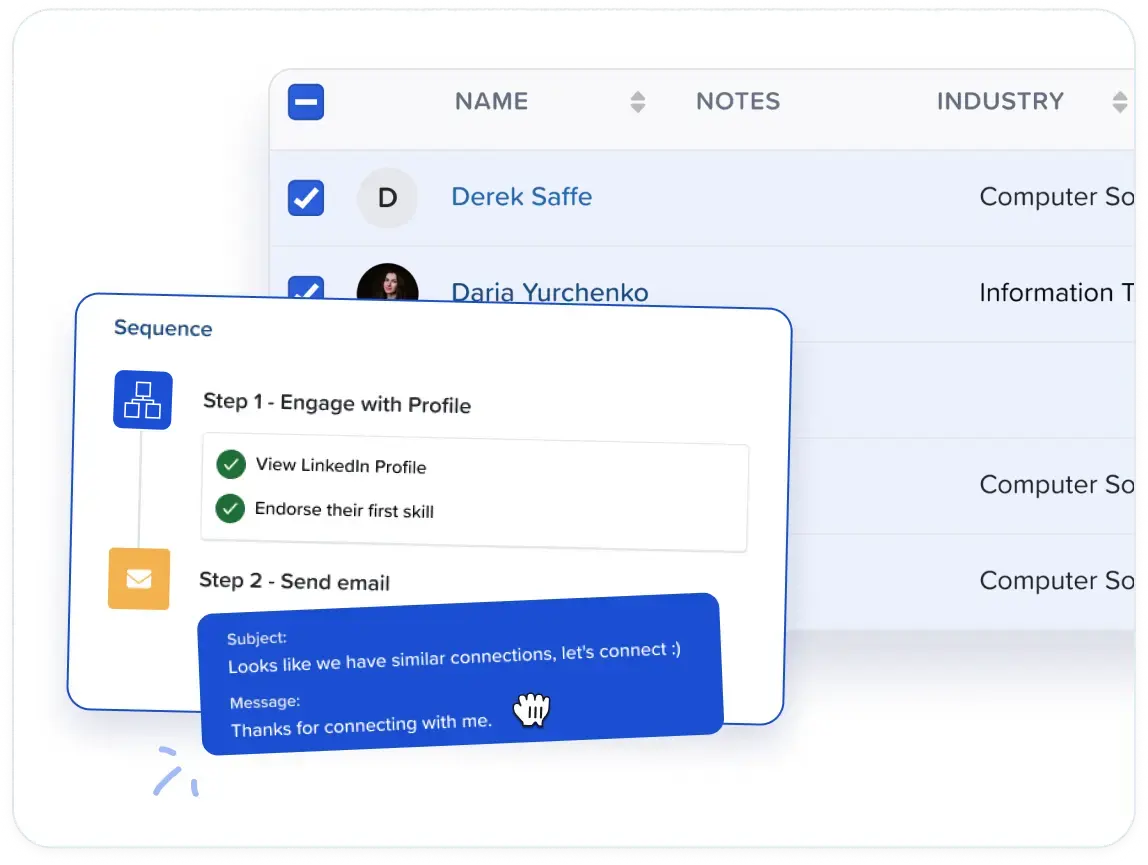
Then there's the profile, which many prospects open before they accept a request.
The line under your name and your About section should both describe the buyers you work with and the problem you solve for them.
Step 2: Decide which outreach tasks to automate
Automate the LinkedIn tasks that repeat on a predictable schedule, and keep anything that needs judgment with a person.
This is how I'd split the common tasks in a Meet Alfred setup:
I'm strictest about copy, since a weak connection note reaches every lead in a campaign before anyone spots it.
Each template should be written and proofread by hand before it goes into a sequence.
Step 3: Connect LinkedIn and set the account guardrails
Connect your LinkedIn profile to Meet Alfred first, then set the limits every automated action has to respect, all ahead of the first campaign.
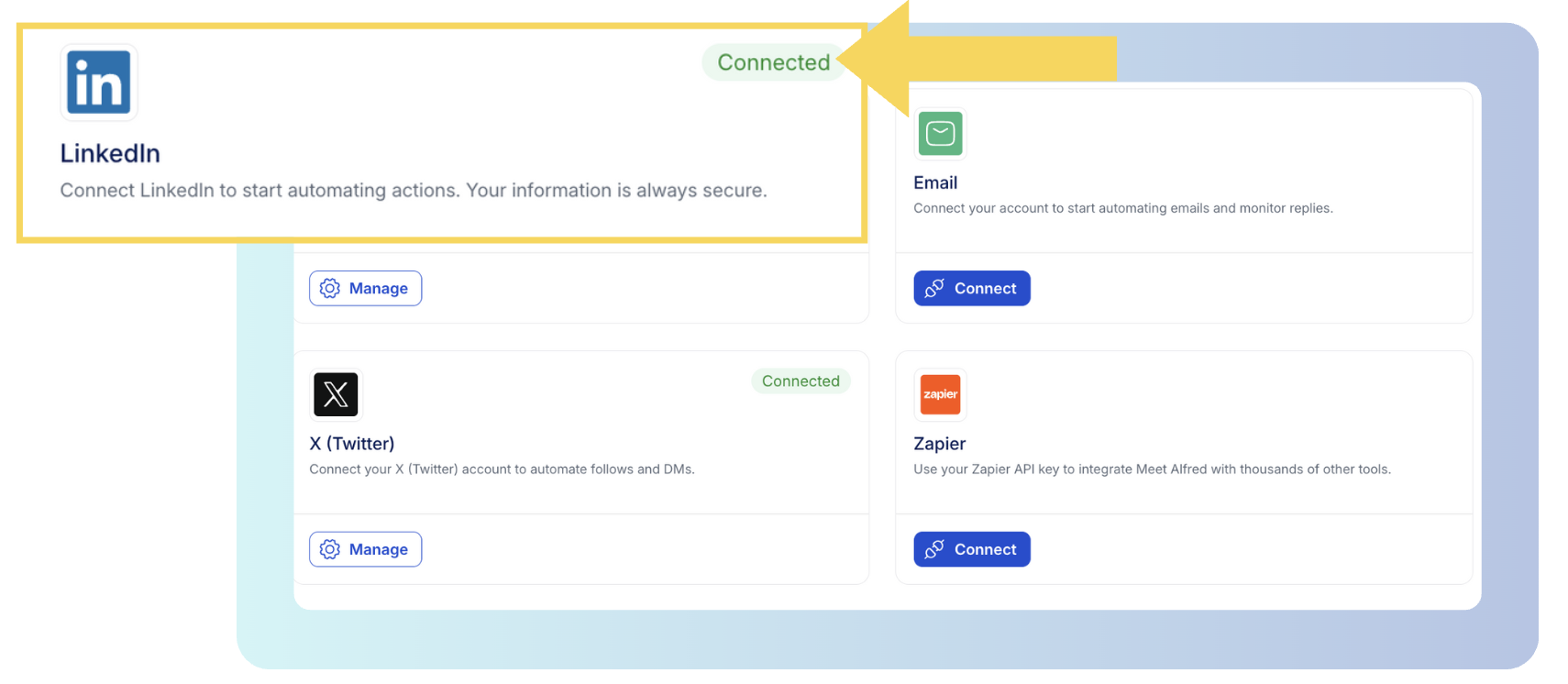
Two-factor authentication is completed inside the Meet Alfred dashboard during that connection, and the limits themselves are part of Customizable AI Settings in the Settings area.
➡️ We send everything from Meet Alfred's cloud servers on AWS, with a dedicated IP address for each connected account.
There's no browser extension or proxy for you to manage, so a closed laptop never pauses a campaign.
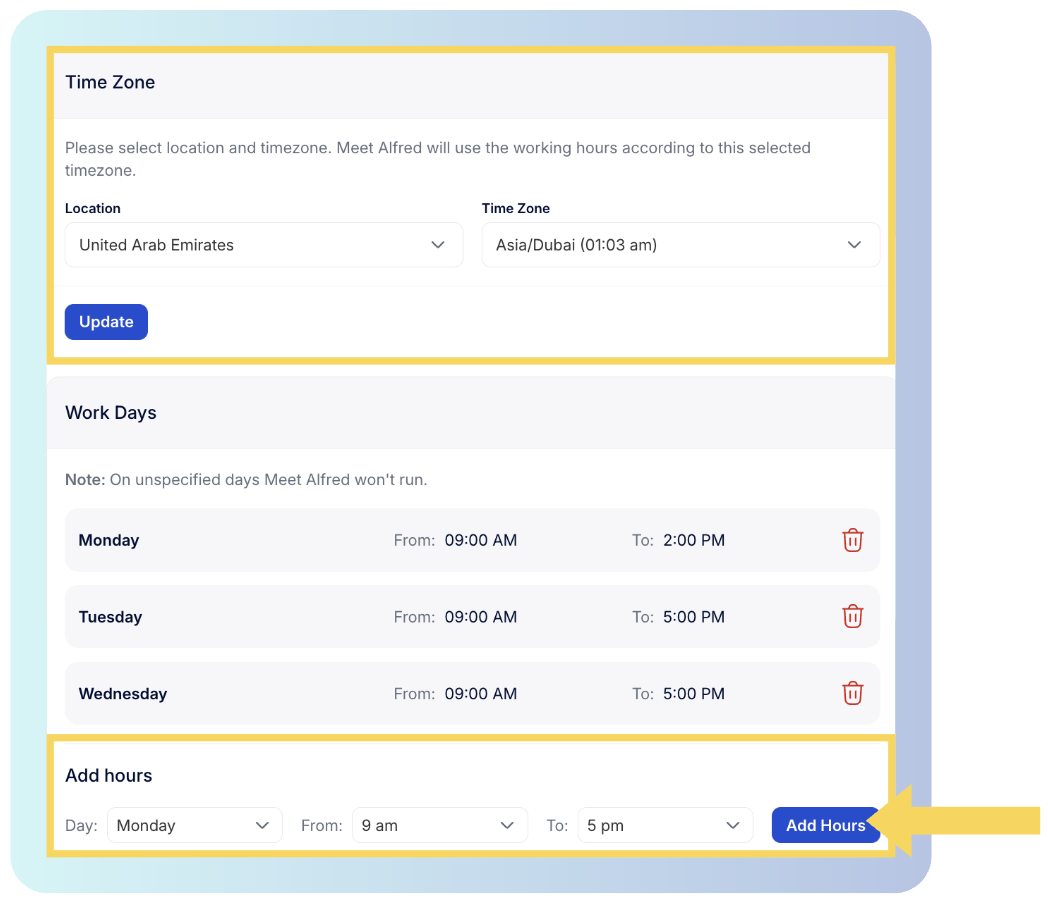
Four controls shape how the account behaves once campaigns start:
- Working hours: automation runs only inside a window you choose, in the time zone of the people you're contacting, so a campaign aimed at Amsterdam sends during the Dutch working day.
- Randomized delays: inside that window, Meet Alfred spaces actions at irregular intervals, the way a person working by hand would.
- Auto-withdrawal: Meet Alfred withdraws stale pending invitations on its own and logs each one in a separate analytics view, so it's best switched on from day one.
- Daily connection request limit: the setting I'd handle most carefully, because Meet Alfred allows up to 100 a day within safe parameters, but a new or quiet account should work up to that level over several weeks.
The ramp I tend to use raises the limit once a week, and only after the account passes the check in the right-hand column:
Two rules apply around the ramp:
- When acceptance drops: go back to the previous week's number and keep it there for another seven days.
- When LinkedIn's weekly cap is reached: LinkedIn enforces its own weekly invitation limit, which differs between accounts whatever software sends the requests, so freeze the daily number for a week once LinkedIn reports it.
LinkedIn watches for automated behavior from any tool, so no combination of these settings brings the risk of a restriction down to zero.
Our dos and don'ts guide to LinkedIn automation warnings explains which habits tend to trigger one.
If it happens anyway, our walkthrough on unrestricting a LinkedIn account covers the recovery.
Step 4: Choose the lead source for each campaign
It's ideal to start each Meet Alfred campaign from a single lead source, and during the first weeks of the ramp that source should be a warm one.
A warm lead has already interacted with you or your topic, so the connection note has something specific to mention.
Meet Alfred's warm sources cover five kinds of leads:
- Post engagers: people who engaged with a LinkedIn post, including posts by other authors, so the commenters on a popular industry post can make up your next campaign.
- Event attendees: people attending a LinkedIn event, and our guide to LinkedIn Events has more on prospecting through events.
- Group members: members of a LinkedIn group your buyers belong to.
- Newsletter subscribers: people subscribed to a LinkedIn newsletter on a topic close to your offer.
- 1st-degree connections: people you're already connected with, so their sequence opens with a message.
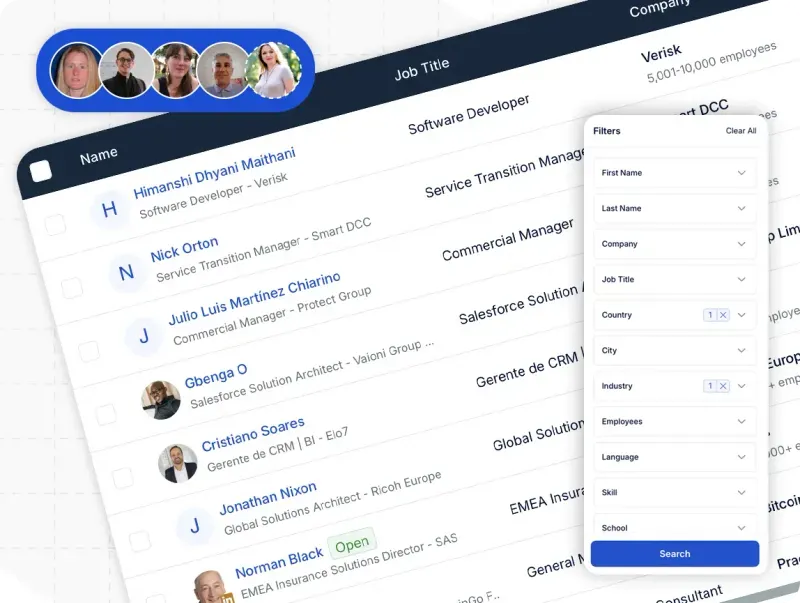
While the ramp keeps you at 20 or 30 requests a day, I'd spend that allowance on post engagers and event attendees first.
Cold lists come second, and Meet Alfred builds those from LinkedIn search results, Sales Navigator searches and saved lists, CSV uploads, and the AI Lead Finder.
AI Lead Finder starts from a short written description of the buyer, such as engineering managers at Dutch software companies with 50 to 200 employees.
Filters for keywords, job title, location, industry, and language narrow that search down, and Preview sample results then shows a handful of matching profiles.
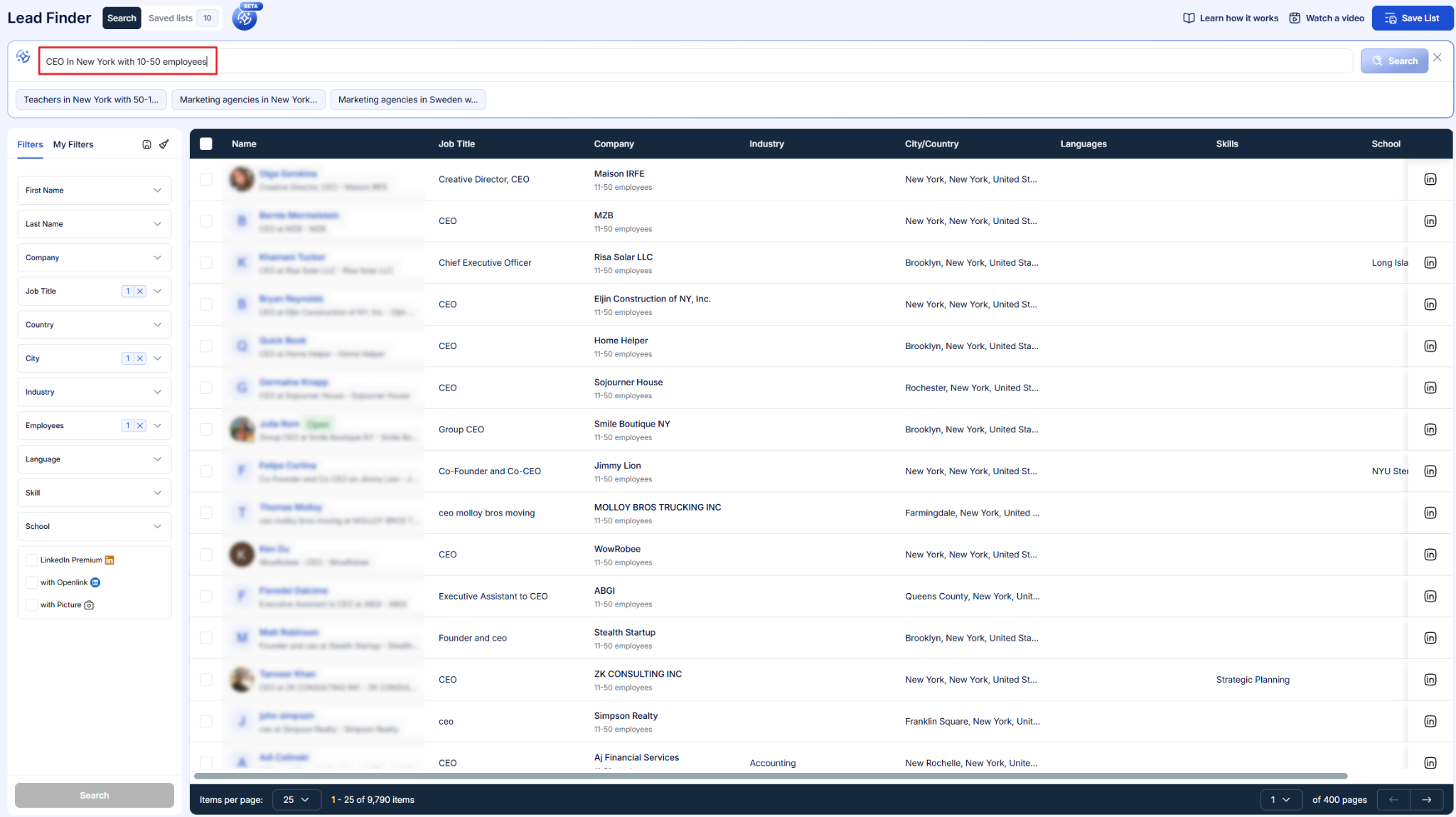
If the wrong job titles keep appearing, that's your cue to tighten a filter.
After you set the lead count, the saved list shows up as a source option during campaign creation.
That single-source habit pays off in reporting, since Meet Alfred's campaign reports then show exactly which source produced the replies with no extra tagging needed.
Step 5: Build the sequence and personalize each step
A sequence is the list of actions each lead in a campaign goes through, in a fixed order.
In Meet Alfred's Multichannel Sequences builder, you add one step at a time and set a delay before each action, which spreads the touches across a week or two.
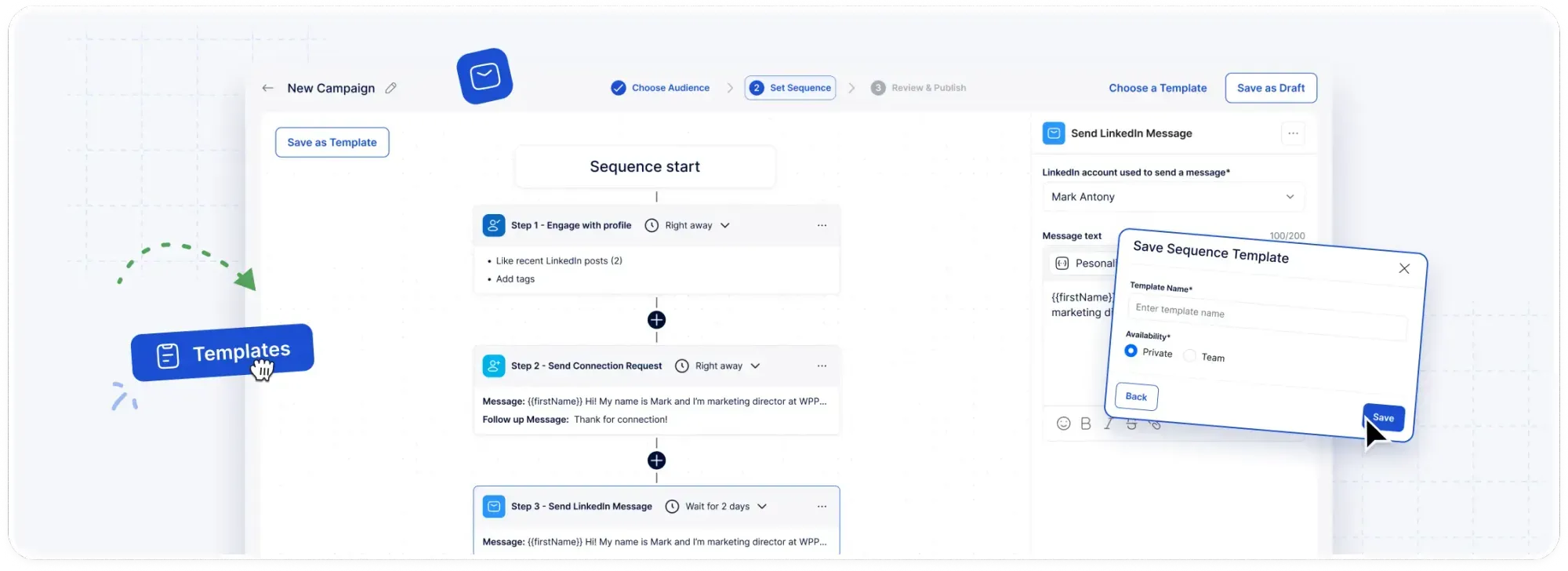
Here's a six-step LinkedIn and email version I'd build for an IT recruitment agency contacting engineering managers at Dutch software companies, running roughly two weeks end to end:
Beyond the order of steps, four details shape the sequence:
- Other channels: InMail and X steps fit into the same builder, and one sequence can hold as many actions as you need.
- Email sending: email steps connect to the mailbox you already use through SMTP or IMAP, with sender aliases and personalized signatures available.
- No email credits: we don't sell email credits in Meet Alfred, so your email provider sets the sending volume.
- Personalization: AI-Personalization pulls details like first name and company from each prospect's LinkedIn profile, and anything LinkedIn doesn't hold comes from custom snippets and a CSV upload.
You'll want to check the rules on unsolicited email in each contact's country, since they differ from one market to the next.
The recruitment agency's connection note might read:
Hi [First name], I saw [Company] is hiring for [Open role]. I place backend engineers with Dutch software teams and would be glad to connect.
[Open role] comes from a CSV column, and the other two fields fill in from LinkedIn.
Our template library in Meet Alfred has more than 600 options, from connection requests through to InMails, each with the variables already in place.
Each template still needs rewriting for your own buyers, which is the manual task from Step 2.
Finished sequences get saved as templates as well, either for your own use or shared with the whole team.
Our 38 LinkedIn connection message templates add more examples for the note itself.
Step 6: Hand every reply to a person
Meet Alfred's reply detection pauses a lead's sequence as soon as that prospect answers on LinkedIn, so no scheduled message reaches someone who's already in a conversation.
In multichannel sequences, an AI hand-off picks out conversations that need a person and passes them back to you or your team.
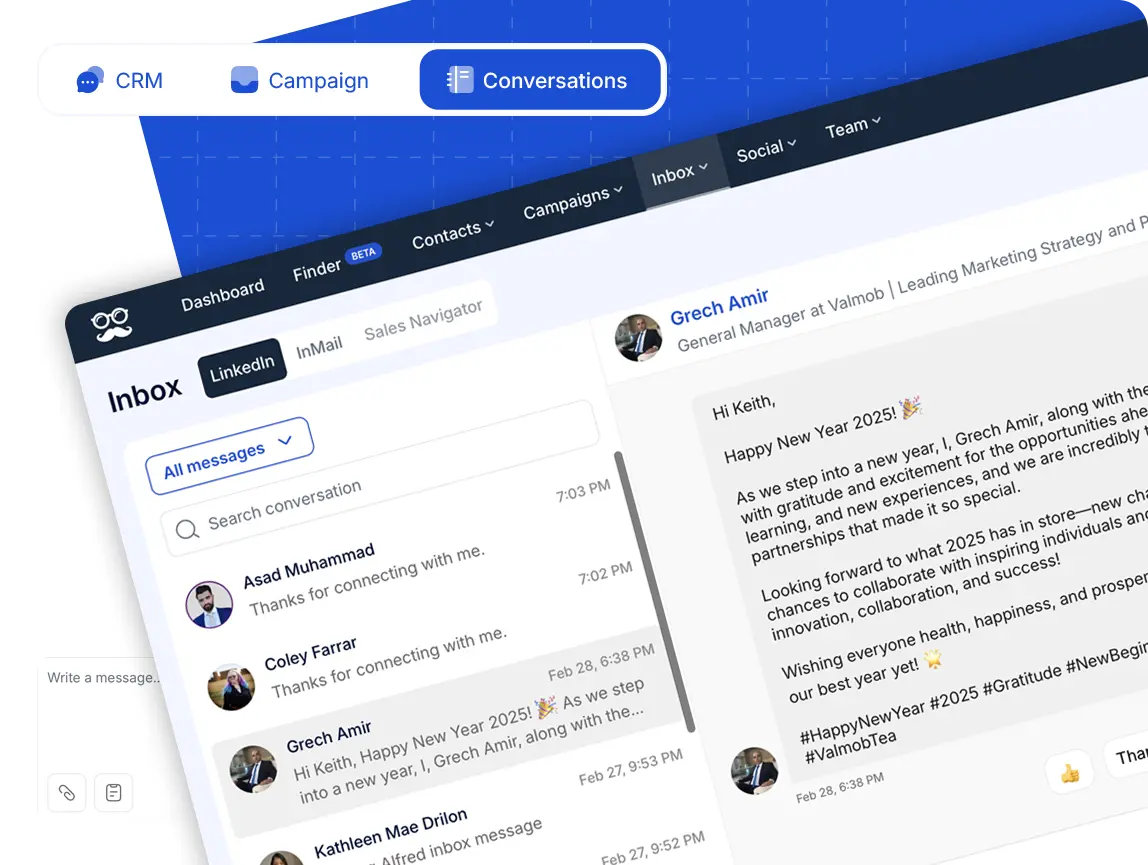
Replies collect in Meet Alfred's Smart Inbox, alongside InMail threads and Sales Navigator conversations from every connected account.
From that view, you can:
- See who's writing: the contact's role and employer appear next to each thread.
- Organize the lead: add tags and notes, send attachments, exclude a lead who isn't a fit, or return someone to a campaign.
- Answer consistently: shared inbox templates cover the questions that recur, so answers stay the same across reps.
- Work in bulk: export replies, or return several leads to campaigns at once.
I'd normally check the Smart Inbox at least twice every working day, because an interested reply cools quickly when it waits overnight.
For a sales team or agency, the Team Inbox covers every rep's threads, with role-based permissions controlling what each member can change.
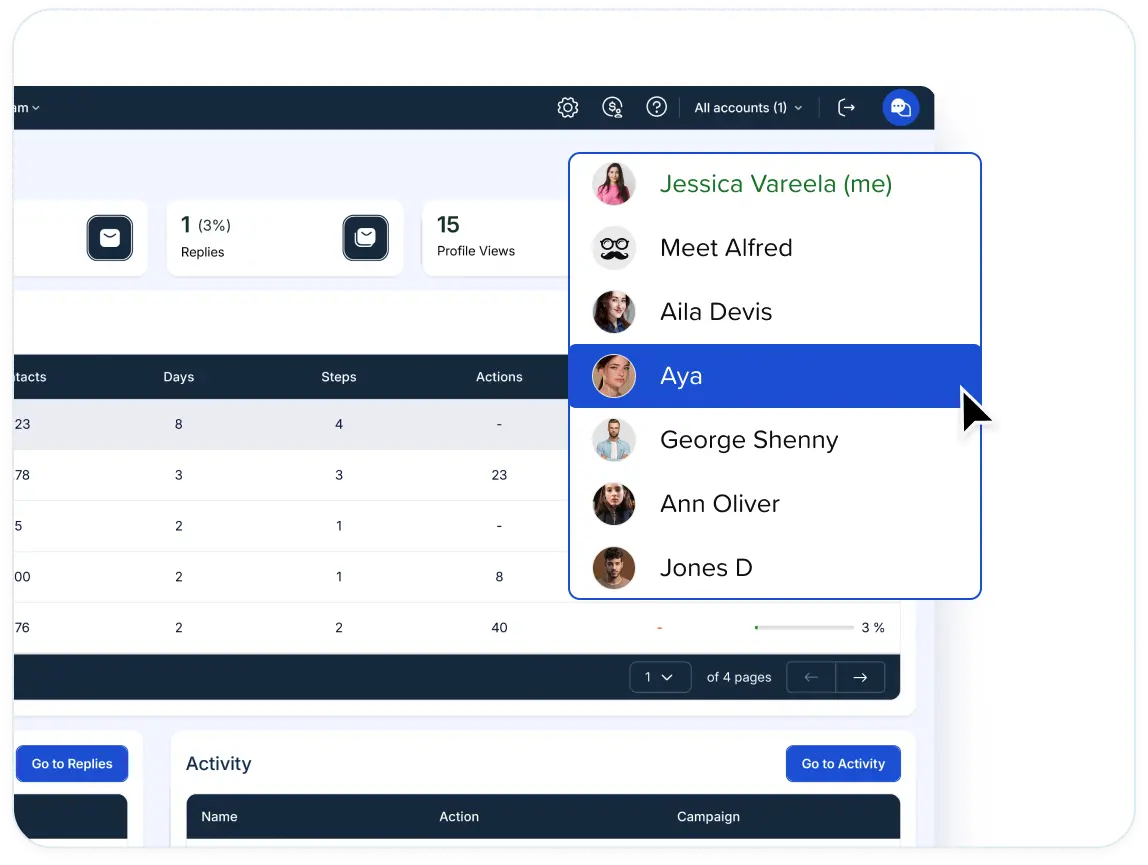
If you manage a team, Impersonation gives you access to any connected teammate's account from your own login, and nobody has to share credentials to cover for an absent rep.
Step 7: Connect your CRM and review results weekly
Connect Meet Alfred to your CRM so contacts and replies reach it with no manual entry, then review the campaign numbers on the same day each week.
Meet Alfred has native syncs for Salesforce and HubSpot, which carry conversations straight onto the CRM record.
Zapier extends Meet Alfred's integrations into more than 5,000 other apps, while webhooks or the API let a developer build anything custom.
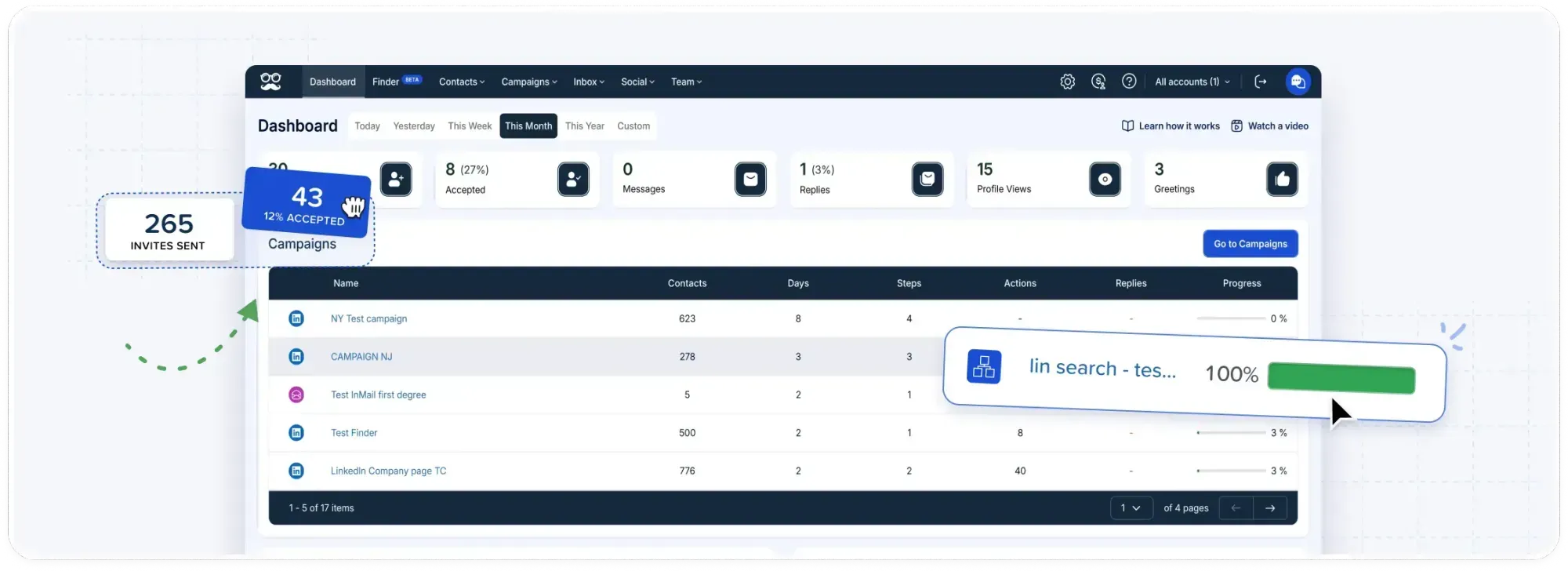
Meet Alfred's Reporting & Tracking updates as results come in, covering connections made, replies, opens, clicks, and conversions.
My weekly review looks at four numbers in that reporting:
- The acceptance rate compared with last week, which decides whether the daily limit from Step 3 moves up or stays put.
- Replies by lead source, to see which source the next campaign should draw from.
- Withdrawn invitations, shown in their own analytics view, as a measure of how many requests go unanswered.
- Per-rep activity in the team analytics, exportable for a pipeline meeting.
The campaigns overview on the main dashboard is the quickest place to compare sources, because each campaign from Step 4 uses only one.
How much does Meet Alfred cost to automate LinkedIn outreach?
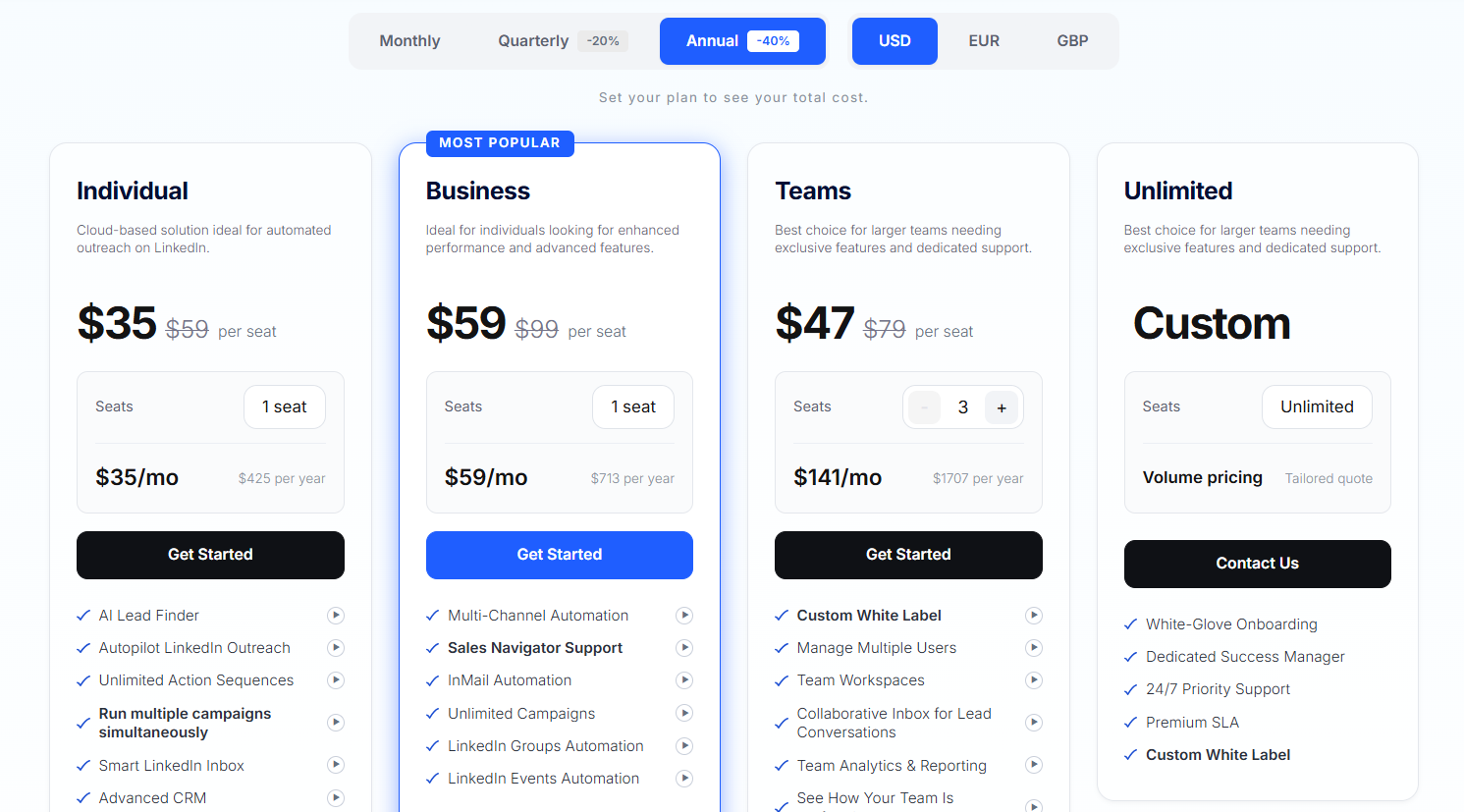
Our Individual plan at Meet Alfred costs $35/user/month on annual billing, per the pricing page in October 2026.
We offer a 7-day free trial with full feature access first, with no credit card required.
Annual billing takes 40% off the monthly rate, while quarterly billing takes 20% off.
- Individual, $35/user/month: campaigns for LinkedIn alone on Basic or Premium accounts, with unlimited sequence actions, 1,000 AI Lead Finder results, automated greetings, and the Smart LinkedIn Inbox.
- Business, $59/user/month: multichannel sequences with email and X, InMail, Sales Navigator, unlimited campaigns, warm campaign sources such as posts and events, and 5,000 AI Lead Finder results.
- Teams, $47/user/month: a dedicated account manager and priority support, plus roles and permissions, the Team Inbox, native Salesforce and HubSpot sync, White Label, and 10,000 AI Lead Finder results.
- Unlimited, custom quote: volume pricing for larger rollouts, with a premium SLA, a dedicated success manager, white-glove onboarding, priority support around the clock, and custom White Label.
Individual supports a single-channel setup, with LinkedIn search and AI Lead Finder supplying the leads and the Smart LinkedIn Inbox collecting replies.
Business opens up the warm lead sources from Step 4 and the multichannel steps from Step 5.
Zapier and webhooks start on Business as well, while the native CRM sync from Step 7 and the team features from Step 6 come with Teams.
Start automating LinkedIn outreach with Meet Alfred
If I were starting from zero, week one would cover Steps 1 to 3 plus a single post-engager campaign at 20 requests a day.
By week four, the daily limit would reach 50, with the Step 7 review deciding whether a cold AI Lead Finder list goes into the next campaign.
All of it runs from one Meet Alfred dashboard in the cloud, inside limits you control.
My suggestion is to test the setup on your own LinkedIn account with our 7-day free trial, which needs no credit card.
Booking a demo with us is the alternative for anyone who'd like our team's second opinion on limits and lead sources.
⚠️ Disclaimer: This article was last updated on the 22nd of October, 2026, and if there's any misinterpretation of the information, please contact us, and we will fact-check it.
Frequently asked questions
How long does it take to set up LinkedIn outreach automation?
Connecting LinkedIn and configuring the guardrails in Meet Alfred takes a few minutes, and a first campaign can go live the same day.
Reaching a higher daily volume takes about four weeks on the ramp from Step 3.
Over that time, an account moves from 20 to 50 connection requests a day, with each increase depending on a steady acceptance rate.
In my experience, the slowest part is the template writing, because every message needs a person's edit before it goes out at volume.
Does automated LinkedIn outreach run while your computer is off?
With Meet Alfred, yes, because we run every campaign on cloud servers on AWS.
Browser-extension tools generally need a browser open on your computer for actions to send, and that's the main practical difference between the two setups.
Sending still follows the working hours you set, so the Amsterdam campaign from Step 3 keeps to the Dutch working day.
Can one person automate outreach for several LinkedIn accounts?
Yes, a manager can run several connected LinkedIn accounts from one Meet Alfred login through Impersonation, and no account owner has to share a password.
Impersonation opens from the profile bar in the dashboard header, or from the Manage User control next to each name on the Team page.
Groups can sort those accounts by client or by campaign to keep an agency's client work separate.
Can you automate LinkedIn outreach from a free LinkedIn account?
Yes, we built Meet Alfred to automate outreach from free (Basic) and Premium LinkedIn accounts, with Sales Navigator support on the higher tiers listed in the pricing section above.
LinkedIn gives free accounts less room than paid ones, for example on how many personalized connection notes they can send each month.
On a free account, I'd stay at the slower end of the Step 3 ramp for longer and start with warm sources.
Gustavo Parra is a Senior SEO & Content Strategist at Meet Alfred, where he specializes in LinkedIn automation, AI-driven outreach, and account-safe growth strategies. He works closely with product, engineering, and support teams to design automation frameworks that help sales teams and agencies scale LinkedIn outreach while minimizing risk. Gustavo focuses on turning real platform data and firsthand product experience into practical, compliance-first guidance.
Related Articles